
How to Change Colors
How to Change Thread Colors
One of the many features of My Quilting Studio software is the ability to change the color of an embroidery design. This is done using the Color Tool Bar, which is located at the bottom of the Design Page screen.
The Color Tool Bar consists of a series of color “chips.”

When a new work page (document) is opened, the tool bar is automatically populated with twenty default colors. However, when a pre-existing design is opened, the colors in that design are also displayed along this tool bar.

To add more colors, click on + Add Color at the far right of the color chips.
To eliminate colors that are not in the displayed design, click on – Remove Unused.
Another handy way to access these options is to right-click on an empty color chip in the Color Tool Bar to get the menu shown.

A maximum of 38 color chips is displayed on the screen. If there are more than 38 colors in the design, click on the right-facing triangle in the black dot at the end of the color chip row to see the continuation of the colors.
How to Change a Color Chip
To change the color of a chip on the Color Tool Bar, LEFT-CLICK the color chip. A thread color Palette Box appears which displays the palette colors for the selected thread brand. The current color is highlighted, and the name and color number appear in the lower left. Click on the new color, then click OK.
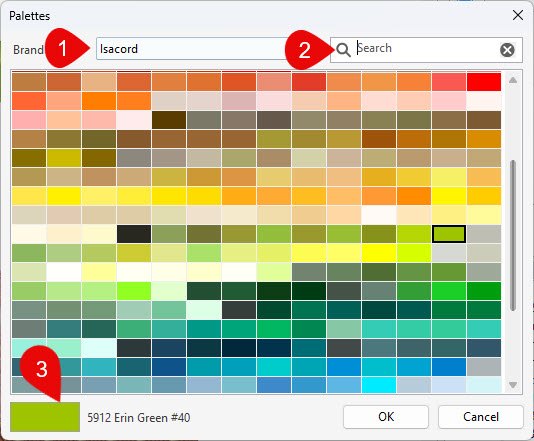
The Palette Box has a drop-down menu for thread brands (1). Click on the down arrow and select the desired thread brand. All colors in the Palette Box are now the new brand.
The Palette Box can be searched by color name or number (2).
The number and name of the currently selected color is displayed (3).
Default Colors
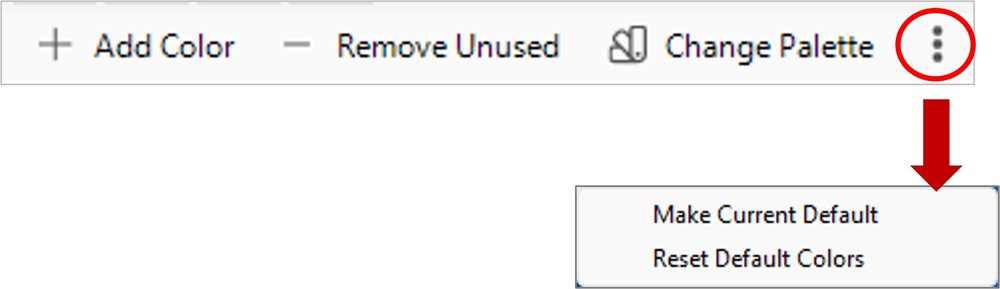
To set a new palette of default colors, open a new work page, set your colors on the color chip bar, then click the three vertical dots in the extreme lower right-hand corner.
Select Make Current Default from the drop-down menu.
You can also restore the default color palette by selecting Reset Default Colors.
Change the Color Palette of an Entire Design

With a design displayed on the work page, click on Change Palette in the lower right corner of the screen.
The Change Palette dialog box opens, displaying the current design with thread colors listed by color, code (number), name and brand.
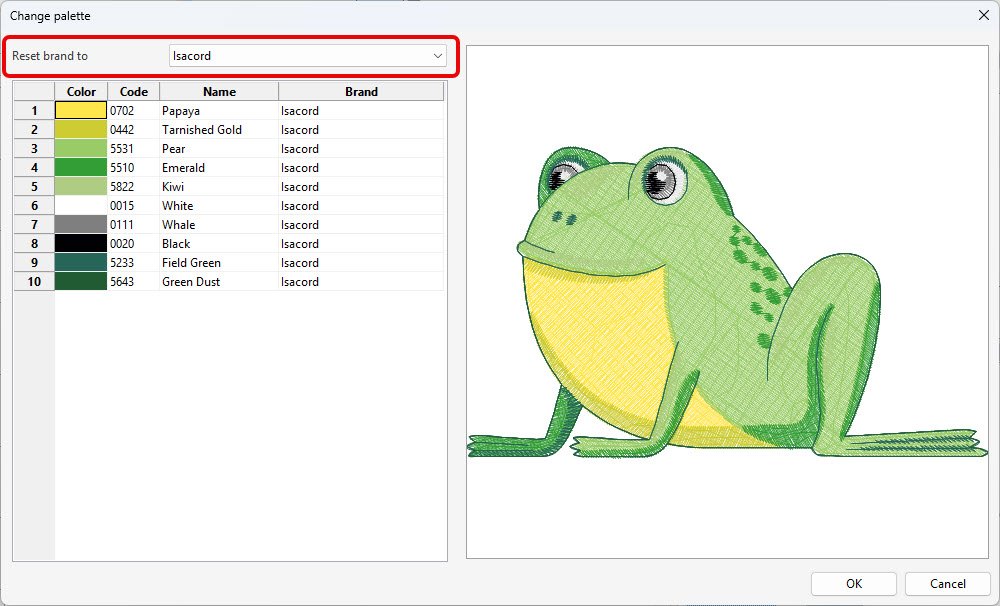
To change the thread brand, click on the drop-down menu next to Reset brand to (red box) and select the new brand. The new colors will now display. Click OK.
To change just one thread in the list, highlight and change the color number OR double-click the thread Brand name.
How to Change the Thread Palette for All Designs
Select General Options from the File tab. Select the first tab, Environment. There is a drop-down menu under the words Default Palette. Select your thread brand and click OK.
How to Change a Thread Color in a Design
In this software you can change the color of any stitch segment in the embroidery design.
This is done in the Sequence tab located in the lower right area of the Design Page. It is the first tab in the Tool Box.
If the design is grouped, select the design and ungroup it (right-click, or click the Ungroup icon in the Floating Tool Bar).
All the stitch components are displayed by color. Click the “+” sign in front of each segment to expand that color segment into its subsegments.
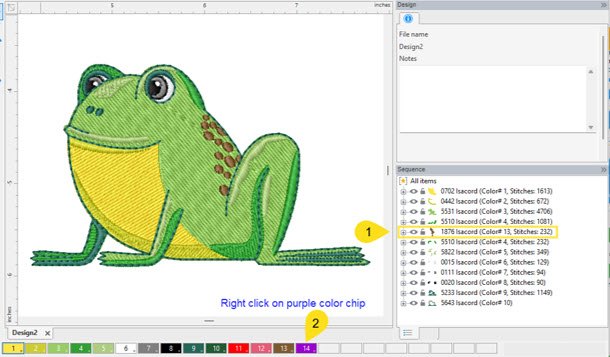
Select the stitch segment for the color change. Locate the new color on the Color Bar and RIGHT-CLICK to change to the new color.
Example: To change the color of the spots on the frog to purple, select the color segment for the spots (1), then right-click the color chip for the new color (2).
Change the Background Color

To change the color of the background on the work page, go to the View tab and select Background Color. Click the down arrow to choose a solid color or a texture from the drop-down list.