
Backdrop Tool

The Backdrop Tool places an image on the work page that can be used as a template, a guide, or a pattern. The Backdrop is useful for auditioning designs on various items for placement and scale. You can also use this feature to trace an outline of a pattern or an object.
The backdrop image can be any vector or raster image file. Image files can be obtained by scanning, taking a photograph or from online sources. Please respect copyright and licensing policies and restrictions.
Select the Backdrop Tool icon in the View tab or the Vertical Icon Array. Locate the file to be used as the backdrop from the folders/files on your computer.
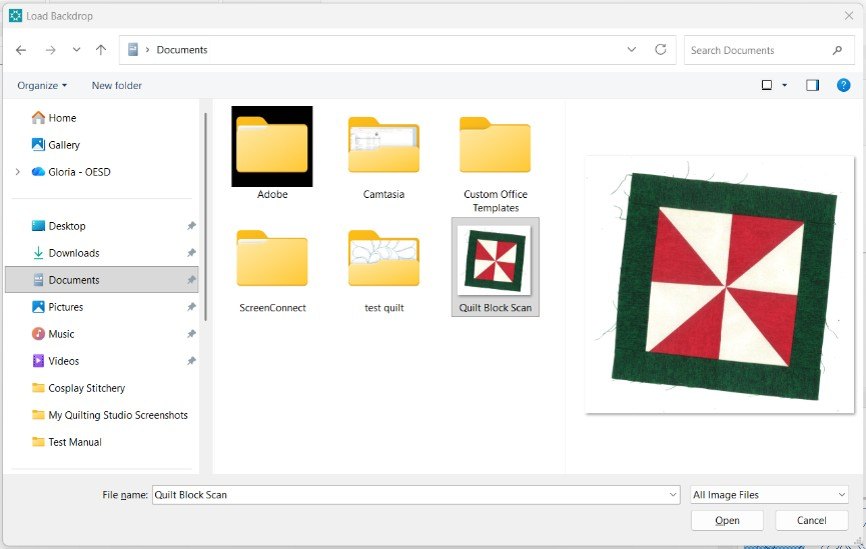
Select the image, then click Open to add the image to the work surface.
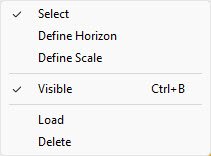
With the image on the work page, open the Backdrop Tool submenu by clicking on the black triangle on the icon. A drop-down menu lists options for the backdrop image.
To hide the Backdrop image, uncheck Visible.
Define Horizon
To straighten an image which is crooked, select Define Horizon. The cursor will become a “+” sign when on the work page.
Left-click, hold and drag to draw a straight line across any part of the image that should be parallel to the horizon (a horizontal line). Release the mouse button and the backdrop image aligns to this new “horizon.” It is helpful to turn on the grid lines to verify the image is straight.
Example:
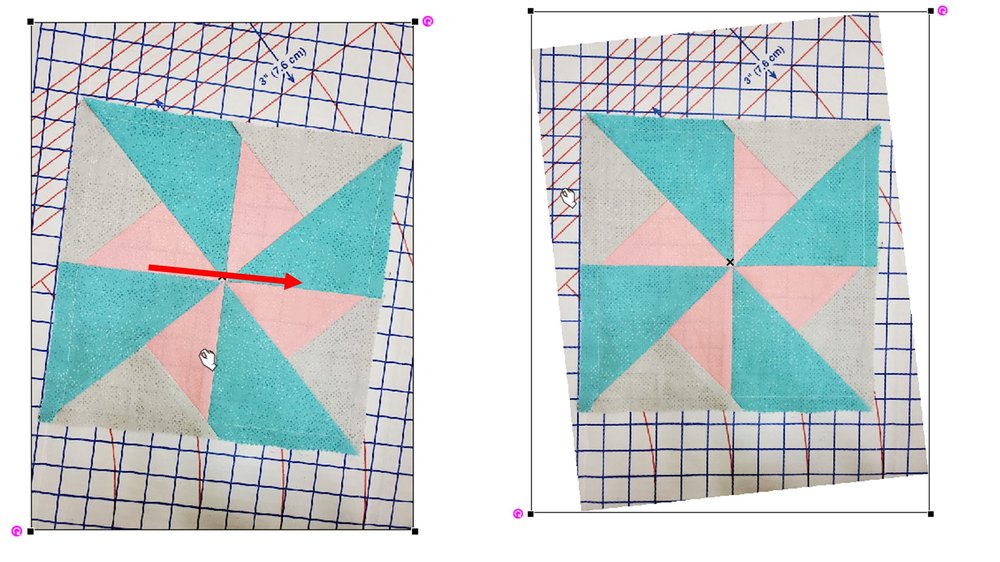
- Left: The backdrop image of a quilt block is crooked due to a misaligned camera. Select Define Horizon and draw a straight line (red arrow) along the quilt block seam line.
- Right: The backdrop is skewed, but the quilt block is now straight.
Define Scale
When using the Backdrop Tool to create custom designs or to audition embroidery designs for appearance and placement, it is necessary to set the scale of the backdrop image to actual size. This is easy to do with the Define Scale feature in the Backdrop Tool.
When you take a photo of your project, it is helpful to include a tape measure in the photo or place the item on a background with a defined grid.
|
Tape measure placed in photo. |
Blue background grid is in 1″ increments. |
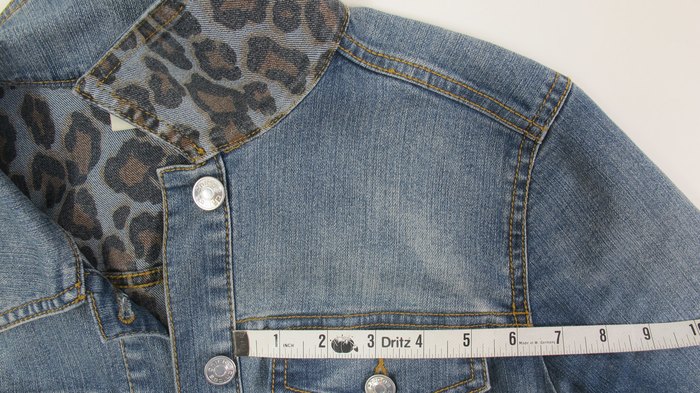
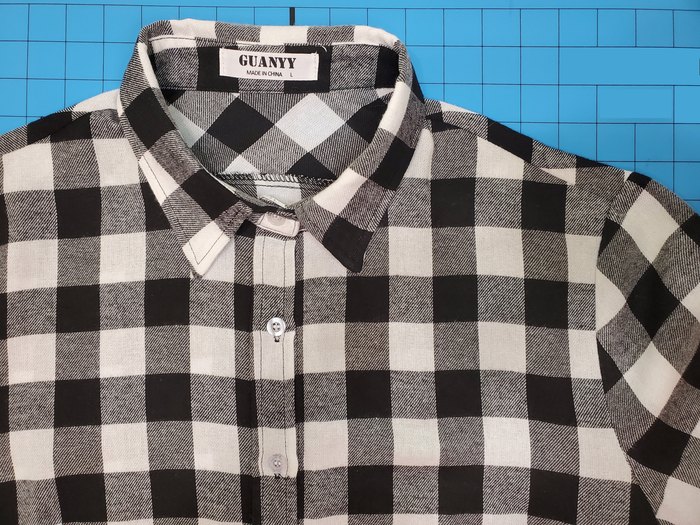
Load your backdrop image and click the triangle under the Backdrop Tool to access the submenu. Click Define Scale.
The cursor changes shape when moved to the work page. Left-click, hold and drag to draw a line along an element in the image that is a known dimension. The line can be any length as long as you know how long the line is.
When you release the mouse, the Define Scale window appears. In the blue highlighted Requested Length field, enter the length of the line you made and click OK.
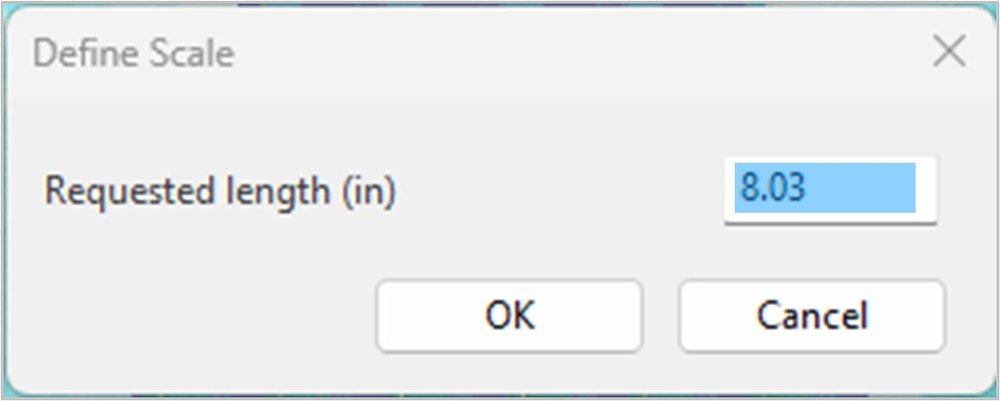
The backdrop image will now be resized based on that proportion.
Backdrop Tab
When a backdrop image is on the work page, the Backdrop tab in the Properties Box appears (red arrow).
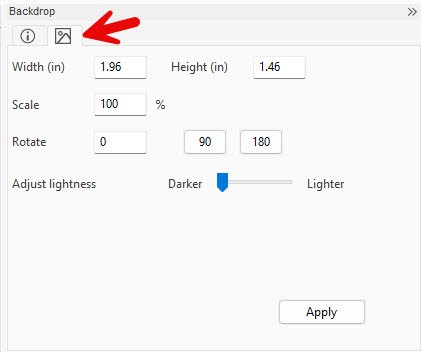
Alter the backdrop image with these options:
- Width (in) and Height (in): Enter specific dimensions to resize the image.
- Scale: Resize by a larger or smaller percentage compared to the original.
- Rotate the image by entering a specific amount, or by clicking 90 or 180.
- Adjust lightness of the image using the slider bar. This is useful when auditioning designs or creating custom quilt patterns, to allow the stitches to be seen more easily.
- Click Apply to implement the changes.