Print Preview
Access this function by clicking on the Print Preview icon in the File tab. Selecting Print Preview opens a secondary window showing how the design appears on a printed page.
There are several features of this secondary window. The Printer icon (red arrow) in this window sends the file directly to the printer.
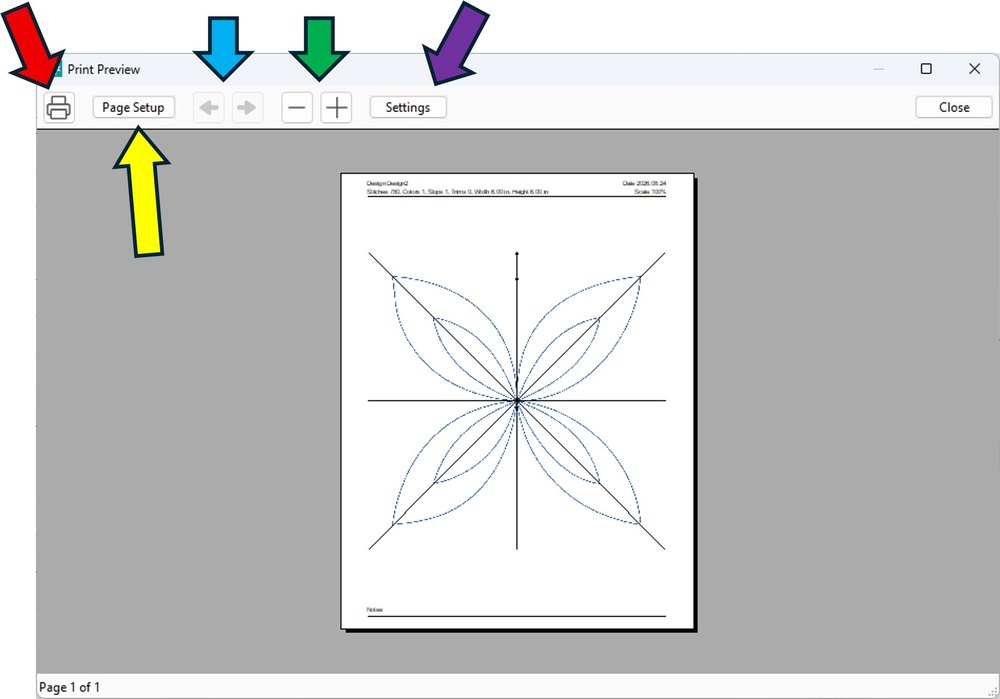
Page Setup (yellow arrow) allows you to choose printout options for the printer.
Left/Right Arrows (blue arrow): If the design is too large for the paper size, it will be split across multiple pages. Select these arrows to view subsequent pages.
Minus/Plus Signs (green arrow): Zoom in and out.
Options for the design printout are chosen in the Settings feature (purple arrow). Click the Settings button and another window appears listing several options for your printout.
Print Preview Settings Window
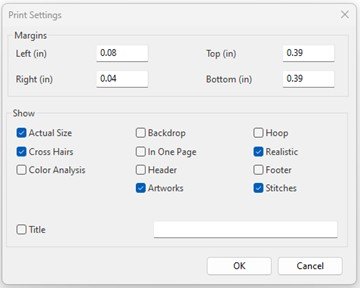
Margins: Customize the left/right and top/bottom margins on the printed page.
Show: Check or uncheck the list of elements to be printed on the page.
- Actual Size: The size of the design on the paper will be the actual size.
- Cross Hairs: When selected, a cross hair indicating the design center will be superimposed on the design image.
- Color Analysis: The sequence of colors in the stitch-out.
- Backdrop: The image loaded on screen to serve as a guide for design size or placement.
- In One Page: Directs the printer to print the design on one printer paper page.
- Header: Prints complete details about the design at the top of the page.
- Artworks: When selected, any artwork element in the design is displayed and printed.
- Hoop: Checking this option will print the hoop image selected from the Hoop Tool.
- Realistic: Check to print the design image in 3D (a realistic view) rather than 2D stitches.
- Footer: Adds a section for Notes at the bottom of the page.
- Stitches: Check to print the stitches in the design. Otherwise nothing will print.
Check the box next to Title and enter the design title in the open text box to have the title included at the top center of the page.