
General Options
It is not necessary to change the default settings to use the software. However, several options are available to set parameters for your machine and personal preferences.
These are accessible in the General Options function on the File tab. These changes are global – they will be applied every time you open the software.
A new window with six tabs will appear (Environment, Machine, Grid, Digitizing, View, and Color Sort). Each of the tabs is discussed below. Check or uncheck the options listed to customize the software to your preferences.
Environment Tab
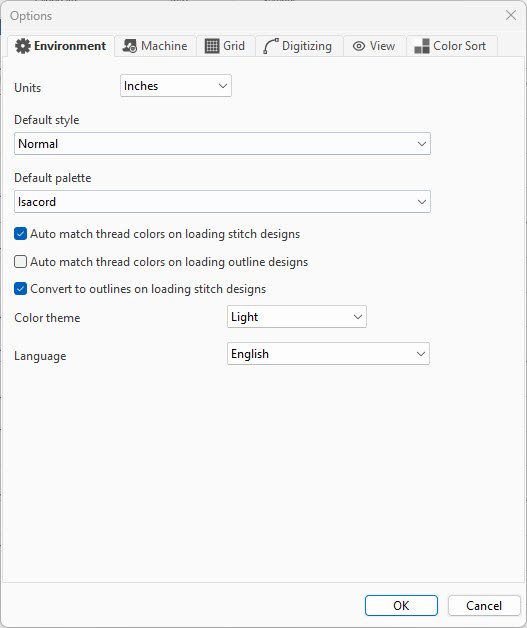
Units: Metric is the default; select inches in the drop-down menu. For an immediate change, right-click the ruler bar (top or left) on the Design Page.
Default Style: Click the drop-down menu to select from a list of fabric types and non-fabric substrates. Options for finishing patches and appliqué are included.
Default Palette: Choose the default thread manufacturer or brand when you create a new design or open a design without color information.
Auto match thread colors on loading stitch designs: Default is checked. The software auto-matches any stitch design to the Default Palette when opened.
Auto match thread colors on loading outline designs: Check to auto-match an outline design to the Default Palette.
Convert to outlines on loading stitch designs: Check (default) to allow the software to access certain internal features of the design to regenerate stitches accurately after resizing.
Color Theme: Select light or dark from the drop-down menu.
Language: Choose the preferred language from the drop-down menu.
Machine Tab
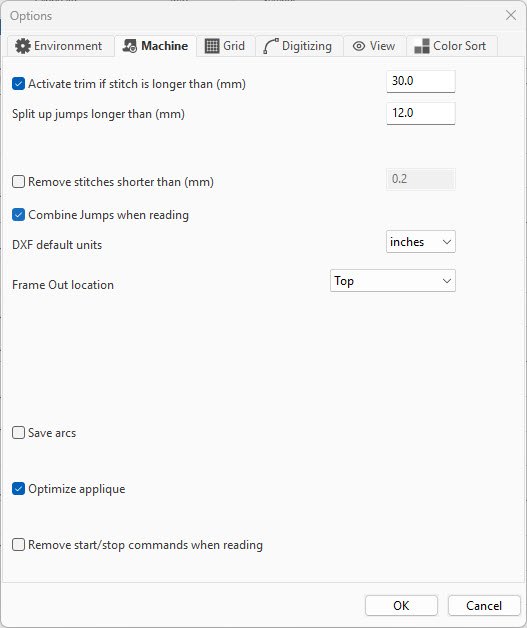
All machine settings are defined using the metric system, the standard in the industry. Options under this tab:
Activate trim if stitch is longer than (mm): The software will automatically add a trim command to the design wherever a stitch is longer than 30 mm (default). This is a user-defined function and may be changed at any time. This function may not be available on all machines.
Split up jumps longer than (mm): Default is 12.0 mm – the maximum jump stitch length. Some embroidery machines cannot make stitches longer than 12 mm without dropping the needle.
Remove stitches shorter than (mm): The default value is 0.2 mm. Change the value by first checking the box, then entering the new value. This function is designed to remove stitches that are too small for any design benefit and could potentially cause thread breaks. It is recommended to leave the setting at the default value to avoid removing lock stitches from designs.
Combine jumps when reading: When a design is loaded, the software combines all jump stitches together, adding jumps only if needed.
DXF default units: Select inches or mm for DXF files. DXF is a CAD data file format designed for sharing drawing data universally across CAD applications.
Frame Out location: This tells the frame out function on the embroidery machine which direction to move the pantograph (top, bottom, left or right) when a frame out command has been inserted. This function may not be available on all machines.
Save arcs: Check to save artwork curves as true mathematical arcs with smooth, continuous curved paths.
Optimize applique: Default is checked. This feature removes the finishing steil stitch from underlying layers of appliqué, while retaining the placement and tack-down stitch lines. This is only visible in the machine format stitch file. The software recognizes designs with multiple layered appliqués.
Remove start/stop commands when reading: Default is UNCHECKED. If this option is checked, the software will remove all the stitch commands when a design is opened.
Grid Tab
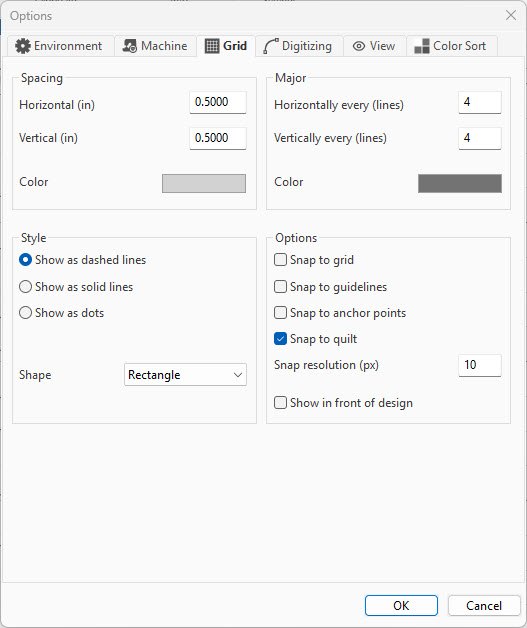
These options determine the appearance and function of the gridlines on the Design Page.
Spacing
Horizontal: Sets the horizontal spacing on the grid. Set to 12.7 mm for ½ inch increments.
Vertical: Sets the vertical spacing on the grid. Set to 12.7 mm for ½ inch increments.
Color: Choose a color for the gridlines.
Major
Horizontally every (lines): Sets the major horizontal lines on the grid. Default is 4.
Vertically every (lines): Sets the major vertical lines on the grid. Default is 4.
Color: Choose the color for the major lines.
Style
- Show as dashed lines: Gridlines show as dashed lines (default).
- Show as solid lines: Gridlines are solid lines.
- Show as dots: Gridlines are dotted lines.
Shape: In the drop-down menu, choose from rectangle (default), diamond or both. This refers to the orientation and pattern of the gridlines on the work page.
Options
Right-click on the ruler on the work page to access some of these options.
- Snap to grid: Check to have the selected object automatically aligned to the closest grid point.
- Snap to guidelines: Check to have the selected object automatically align to the closest guideline.
- Snap to anchor points: If checked, the selected object will align to the closest anchor points (shape nodes).
- Snap to Quilt: If checked, the selected object will align to the quilt elements.
- Snap resolution (px): Change if you have a high-resolution screen or prefer a higher resolution. Default is 10 (pixels).
- Show in front of design: Check if you wish to display the grid in front of the design.
Digitizing Tab
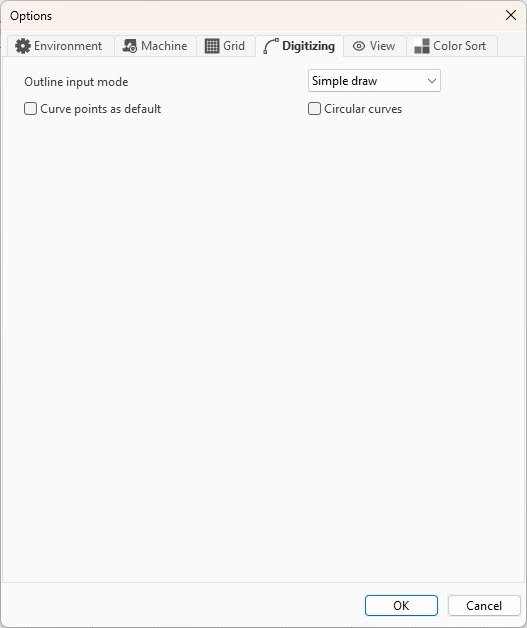
This tab sets the default input method for the Pen tool in the Artwork Input feature.
Outline input mode: Click the down arrow to select one of three different ways to create stitch outlines in the software: Bezier, Simple draw, and Free hand.
Bezier – a common drawing tool in vector artwork programs.
- Left-click to plot your first point.
- Left-click to create a straight line.
- Left-click and drag for a curved line.
- Right-click after plotting your last point to set the structure.
Simple draw – this is the standard (default) mode for the software.
- Left-click to plot your first point.
- Left-click to create a straight line.
- Left-click plus Ctrl on your keyboard to create a curved line.
- Right-click after plotting your last point to set the structure.
Free hand – this is ideal when using a tablet.
- Left-click and hold while dragging your mouse (or touch the tablet and move your cursor to create the line).
- Release when done.
- Right-click to set the structure.
Curve points as default: Check the box to digitize with curved points.
Circular curves: Check the box to create a perfect circle with only 5 points.
View Tab
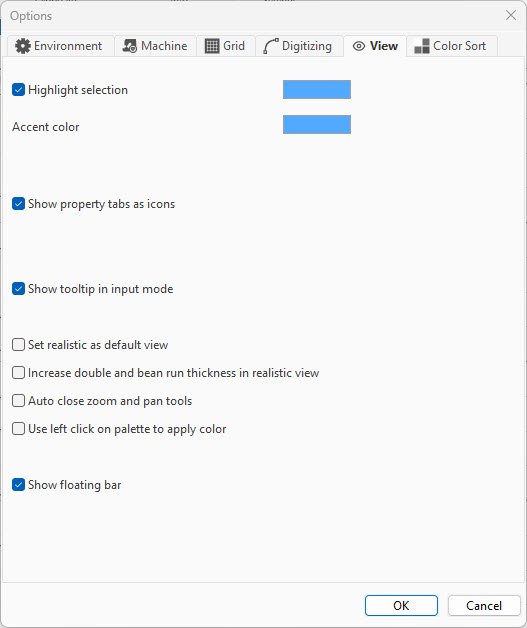
Highlight selection: When checked (default), the object selected on the work page will change color. Click on the color chip to change the highlight (selected) color.
Accent color: The default is gray. Click on the color chip to change.
Show property tabs as icons: When checked (default), the tabs in the Properties Box will be displayed as icons instead of names. This option can reduce scrolling across the tabs when viewing object properties.
Show tooltip in input mode: If checked, a box will appear near the input cursor when digitizing, showing the current cursor distance from the last digitizing point/node.
Set realistic as default view: When checked, all designs will be shown in 3-D (realistic view). On the Design Page, click the Realistic icon to view the design in 2-D.
Increase double and bean run thickness in realistic view: These stitch types will be thicker in the realistic view.
Auto close zoom and pan tools: When checked, this option will automatically close the Zoom Tool and the Pan Tool after selecting and using it on the work page. This saves time, as you don’t have to manually click the Select Tool to turn it off.
Use left click on palette to apply colors: When checked, this option will allow you to left-click on a color chip to apply a color change instead of the default right-click.
Show floating bar: When checked (default), the Floating Tool Bar is always displayed.
Color Sort Tab
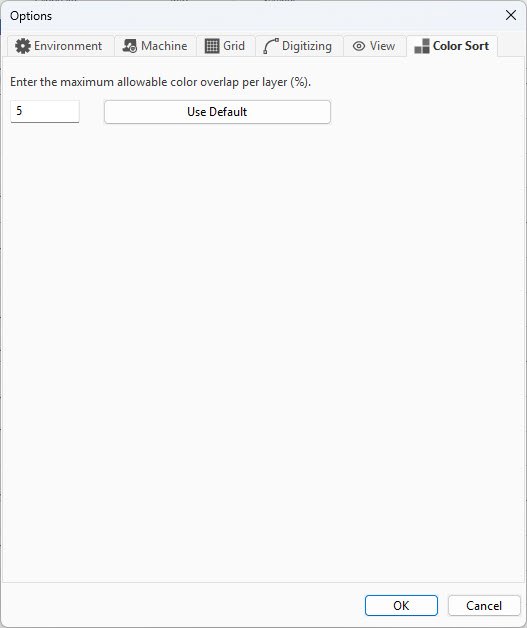
The only option in the Color Sort tab refers to the percent of color overlap allowed per layer.
The default value of 5% allows the Color Sort feature to be used even if areas of the color layers overlap.
It’s technical. Leave it at the default value of 5% and you will be fine! 😊